Image Processing
Batch Images
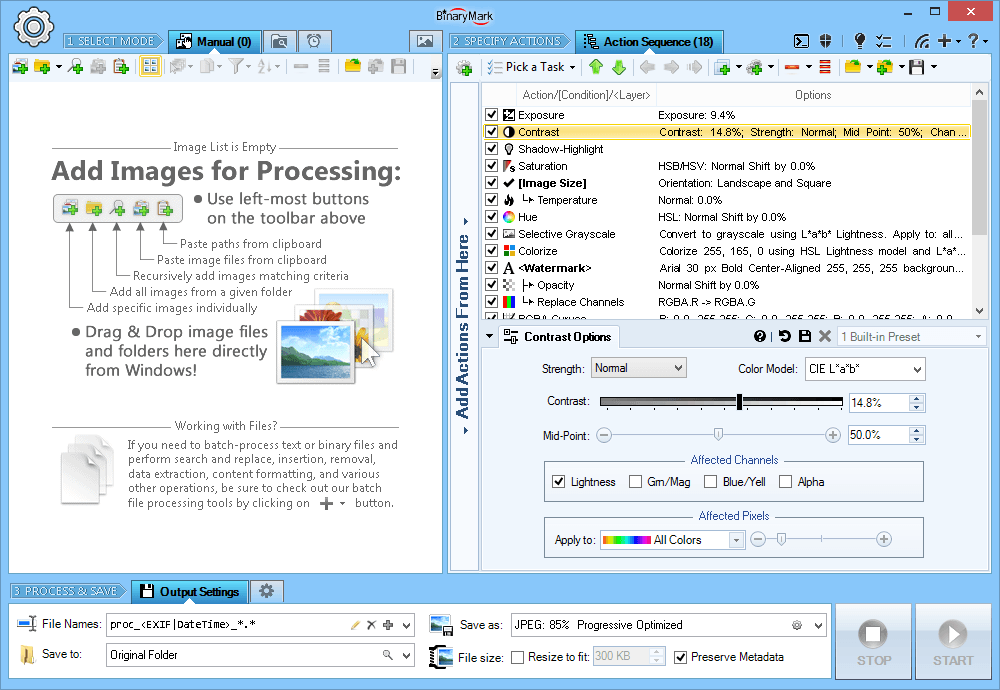
Find, resize, crop, watermark, enhance, adjust, convert, rename, and process your pictures and photos in 30+ image formats with 120+ filters and effects using this graphics software. It features 4 processing modes, per-channel filters, layers, more!
Batch Image Resizer
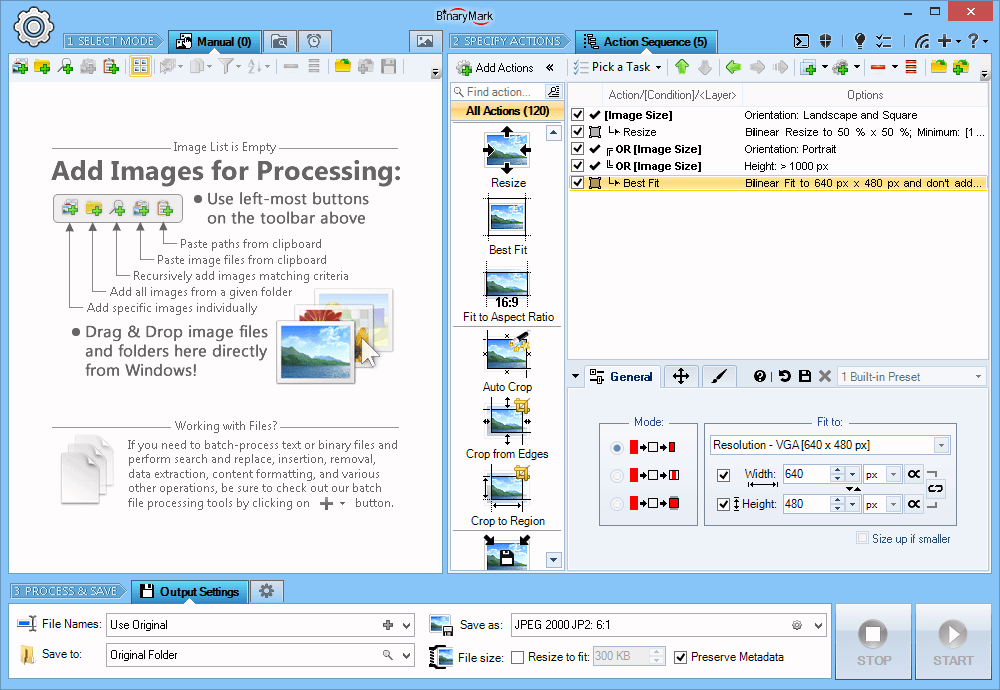
Resize, crop, shrink, flip, EXIF-autorotate, resample, convert, enhance, and process multiple pictures and photos with this professional software! 120+ Actions, 30+ Image Formats, 20 Scaling Modes, Conditional Processing based on Image Orientation.
Batch Image Watermarker
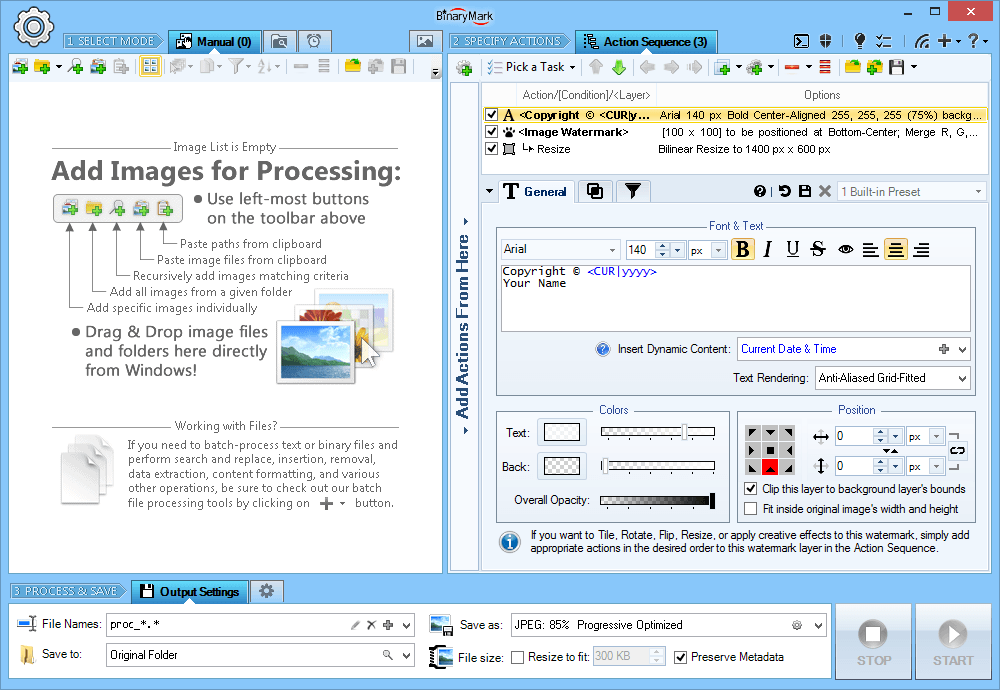
Add stylish static or dynamic text and graphic watermarks to your images and photos. Features include 120+ actions and effects, 30+ image formats, 40+ blend modes, alpha channel, tiled watermarks, dynamic EXIF-based text, dynamic file names, layers.
Batch Image Splitter
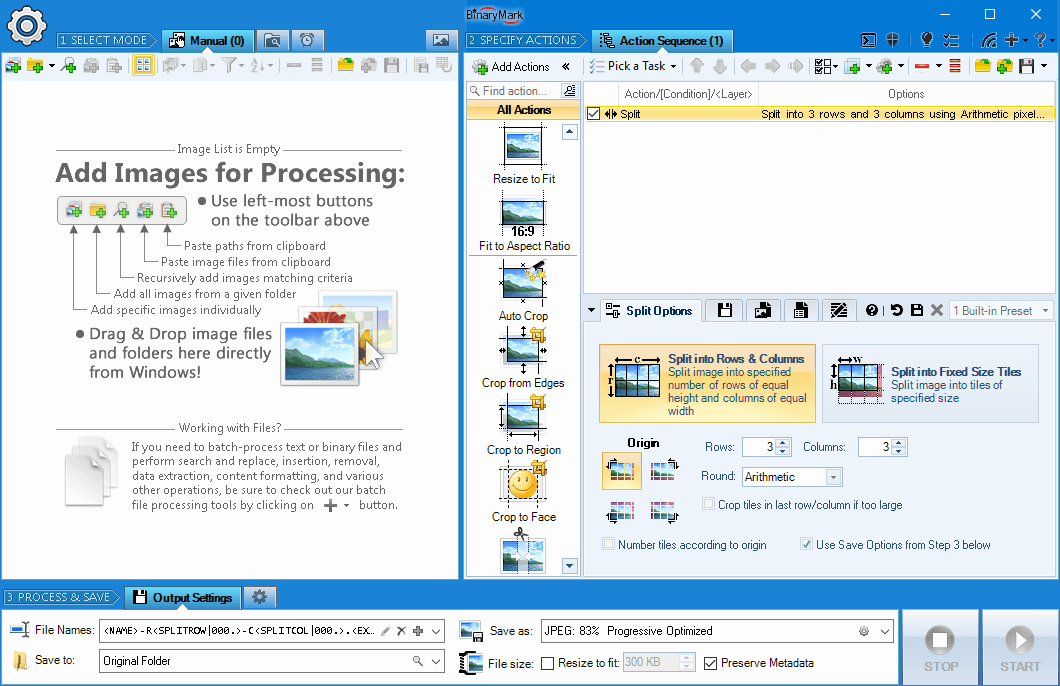
Split multiple pictures into specified number of slices by rows and columns or into tiles of desired size. Use over 130 Actions like resize, crop, contrast, etc. Convert to/from and save results in any of 30+ formats. Add watermarks and more!
Batch Photo Face
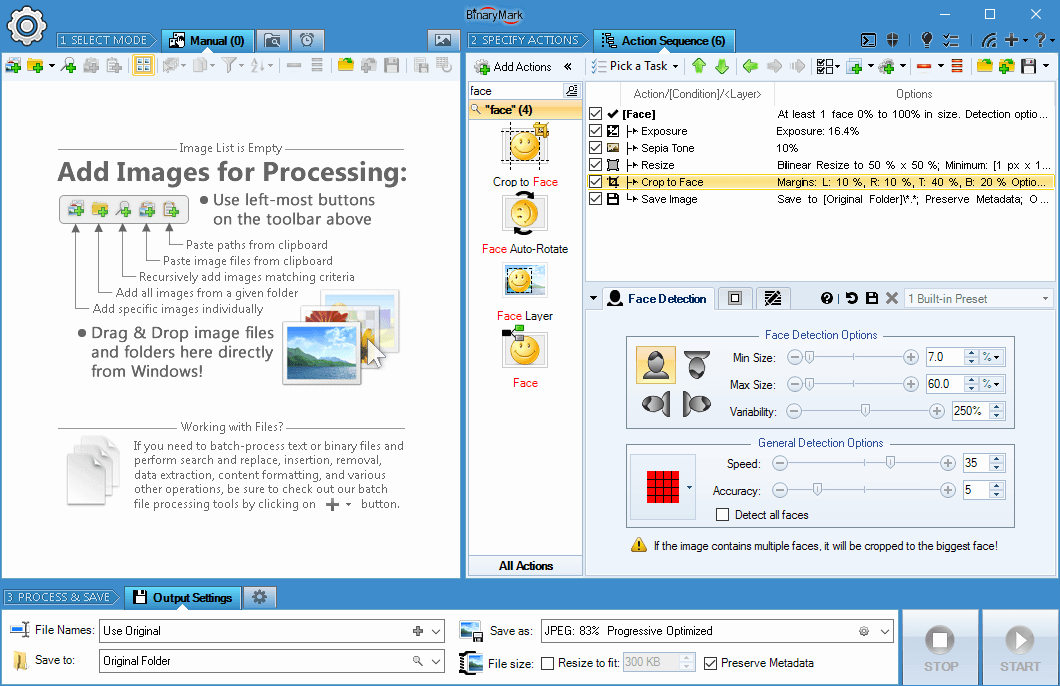
Automatically recognize faces in 1000s of photos and process images based on face detection results! Use over 130 Actions and Filters like resize, crop, contrast, etc. Convert to/from and save results in any of 30+ formats. Add watermarks and more!
Batch Image Enhancer
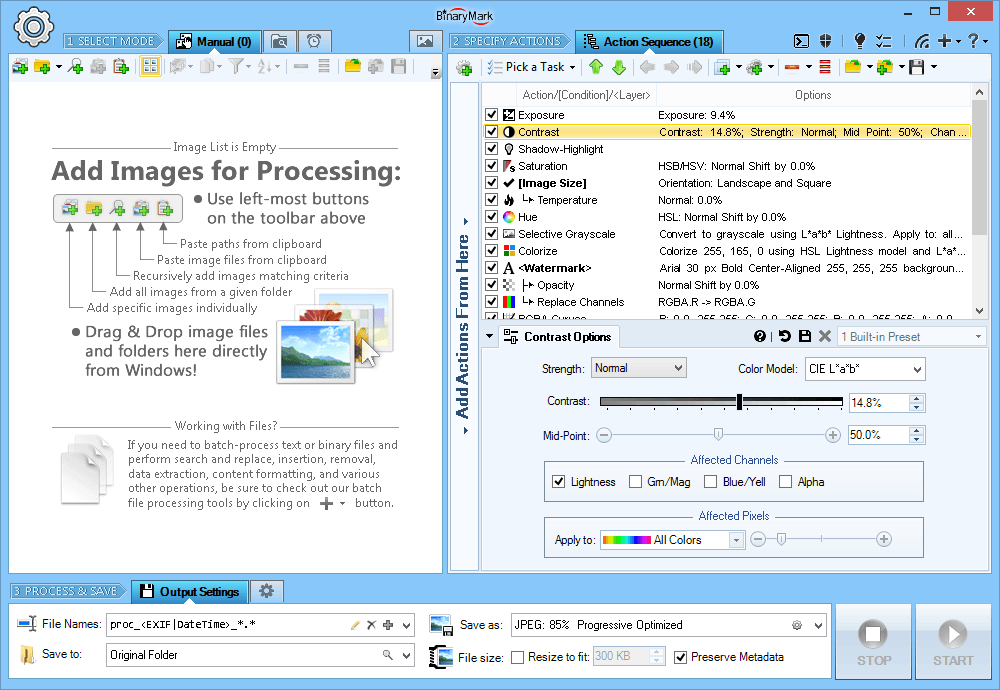
Turn those average photos into stunning images with 120+ adjustments, actions, effects, and filters. Improve brightness, contrast, saturation, temperature, tint, color balance. Resize, crop, sharpen, watermark, and convert to/from 30+ image formats!
Batch Image Converter
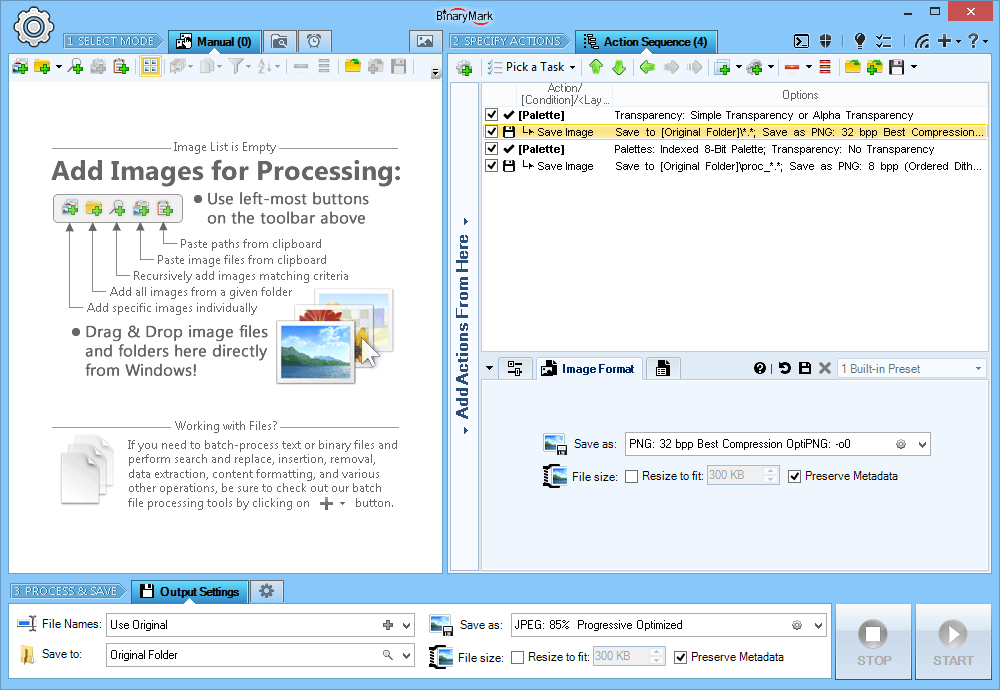
Convert multiple images, photos, and pictures between 30+ formats: JPG, PNG, GIF, TIFF, BMP, JP2, J2K, TGA, PSD, RAW, DDS, PNM, WMF, ICO, SGI, HDR, LBM, MNG, XBM, XPM, PCD, PCX, PIC, JNG, WBM, G3... Additionally includes 120+ Actions and Effects.
Document Processing
Batch Docs
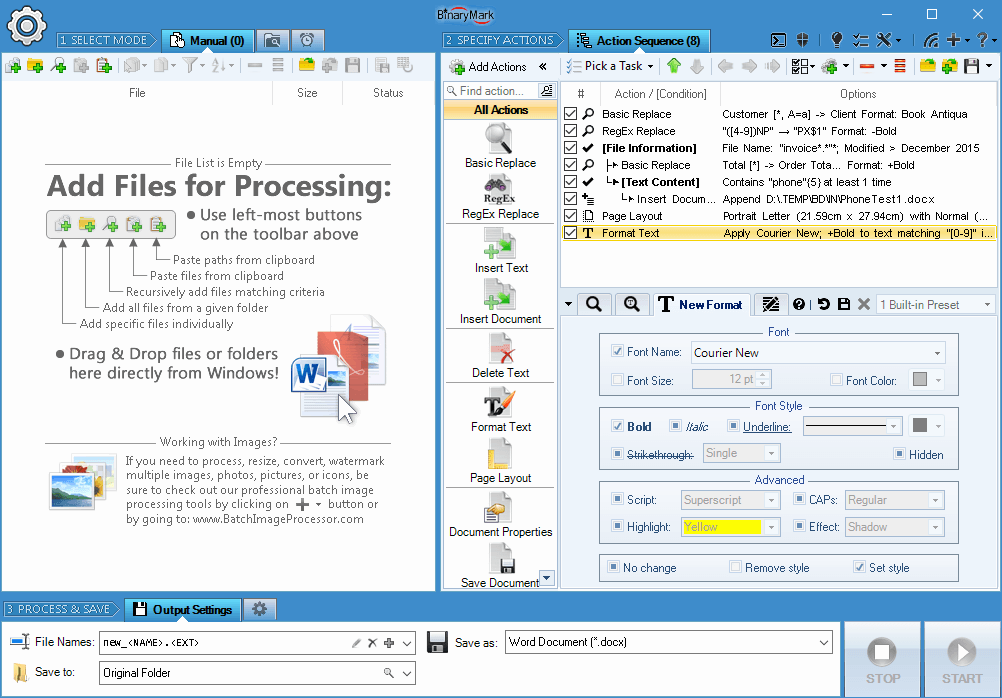
Replace, insert new content, remove existing text, change text style and formatting in 1000s of Word and text documents in bulk. Save results and convert between various document formats: docx, doc, pdf, odt, rtf, wpd, txt, xps, html, and others.
Batch Word Replace
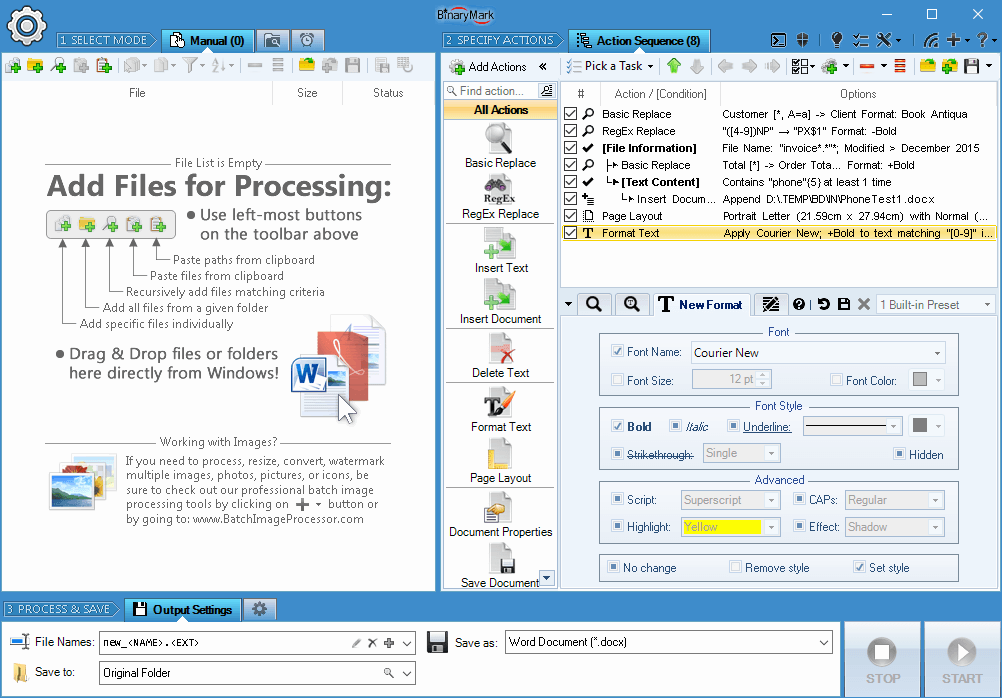
Replace, insert new content, remove existing text, change text style and formatting in 1000s of Word and text documents in bulk. Save results and convert between various document formats: docx, doc, pdf, odt, rtf, wpd, txt, xps, html, and others.
File Processing
Batch Files
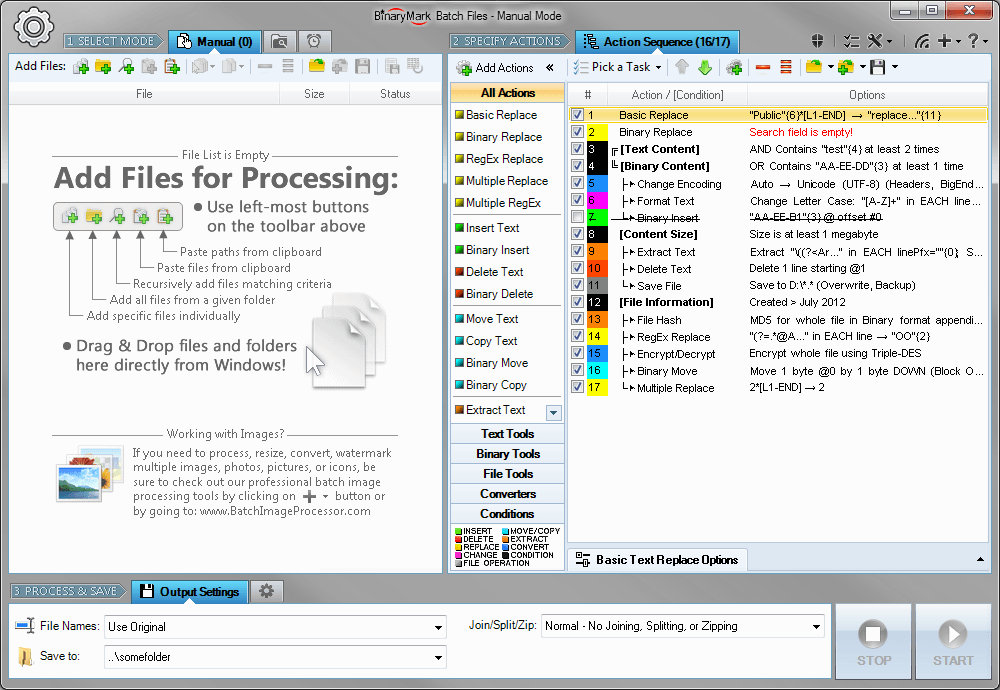
Replace, insert, delete, copy, move, format, extract, convert, encode, encrypt text and bytes in multiple files. Process 1000s files using multiple CPU cores in manual, automatic, scheduled, or console modes, or right-clicking on selected files.
Batch Encoding Converter
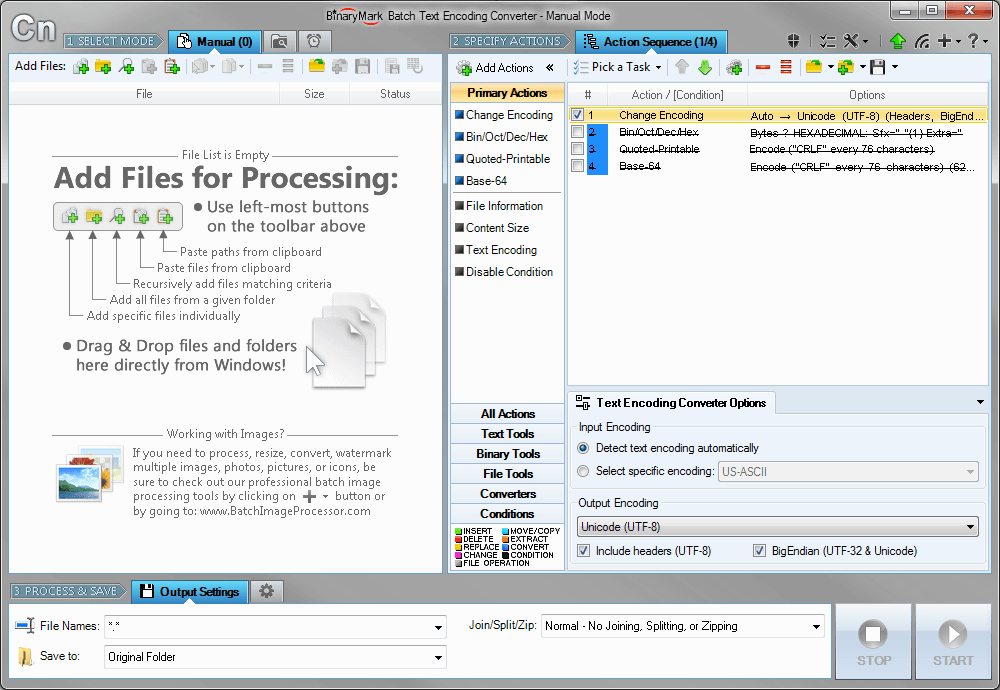
Convert multiple files between more than 100 text encodings and binary formats: Unicode, ANSI, Latin, Cyrillic, ASCII, UTF8, ISO, OEM, Mac, Base-64, Bin-Hex, Quoted-Printable. Features automatic encoding detection, Big Endian support, and more!
Batch File Replace
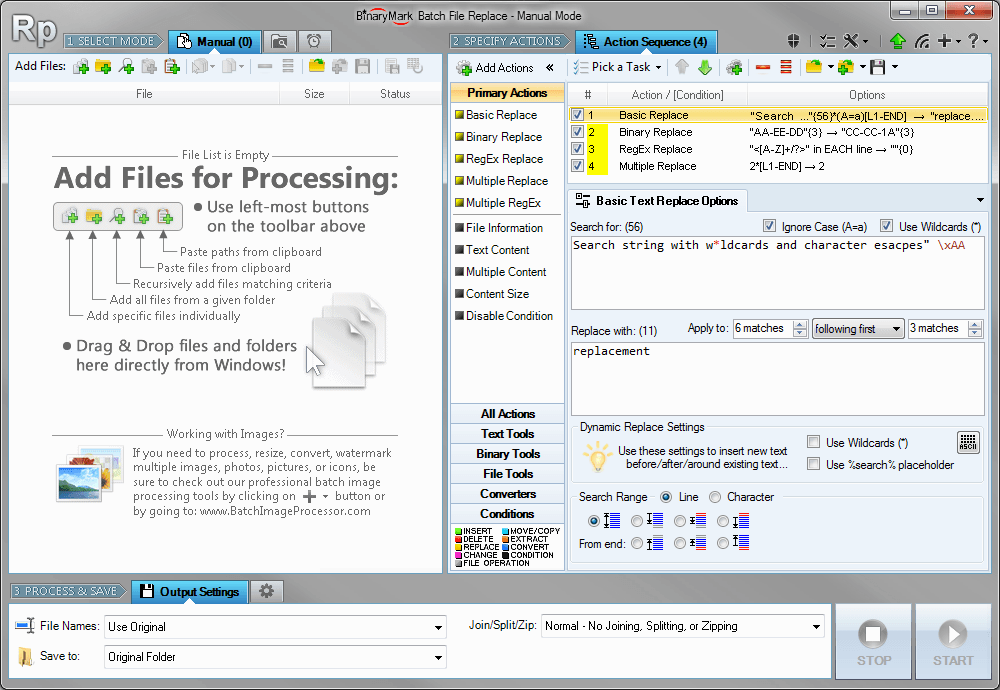
Search and replace text and raw bytes in multiple files. Features include: multi-line text entry; full support for RegEx with syntax highlighting and match substitutions; built-in hex editor to replace bytes; wildcards and case-sensitivity; Unicode.
Batch RegEx
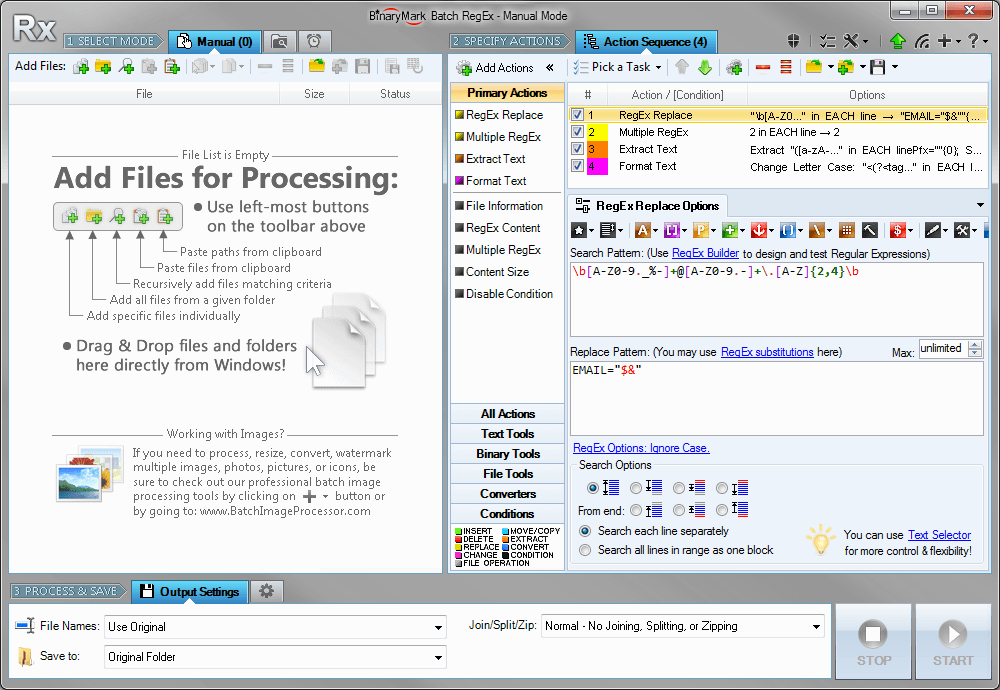
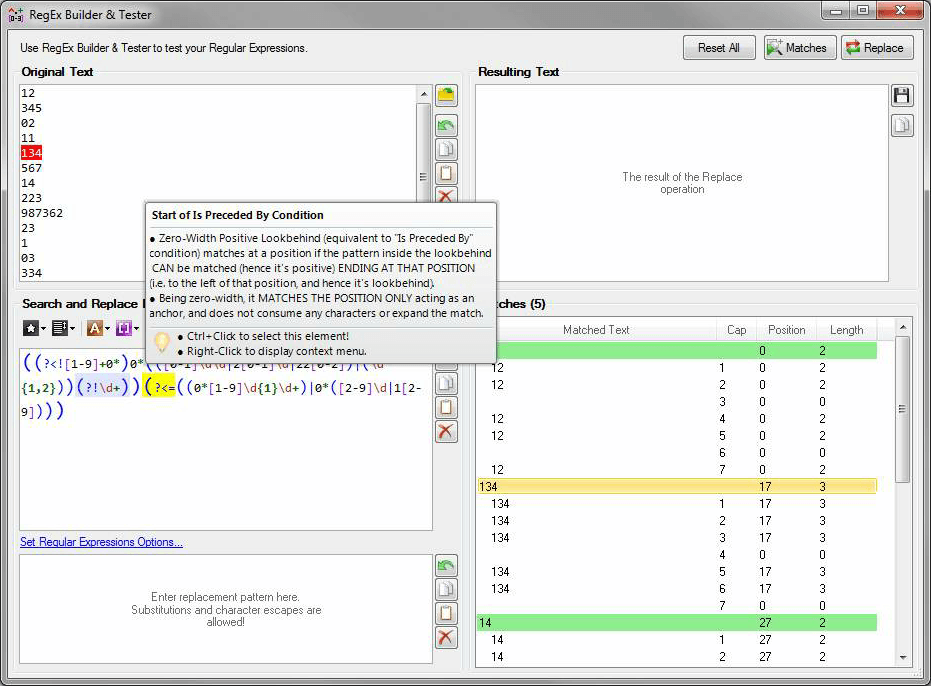
Replace, format, and extract text in multiple files using Regular Expressions. Perform GREP-like tasks including search and replace, RegEx substitutions, data extraction, and more! Built-in RegEx editors support color syntax highlighting and tips.
Batch Hex Editor
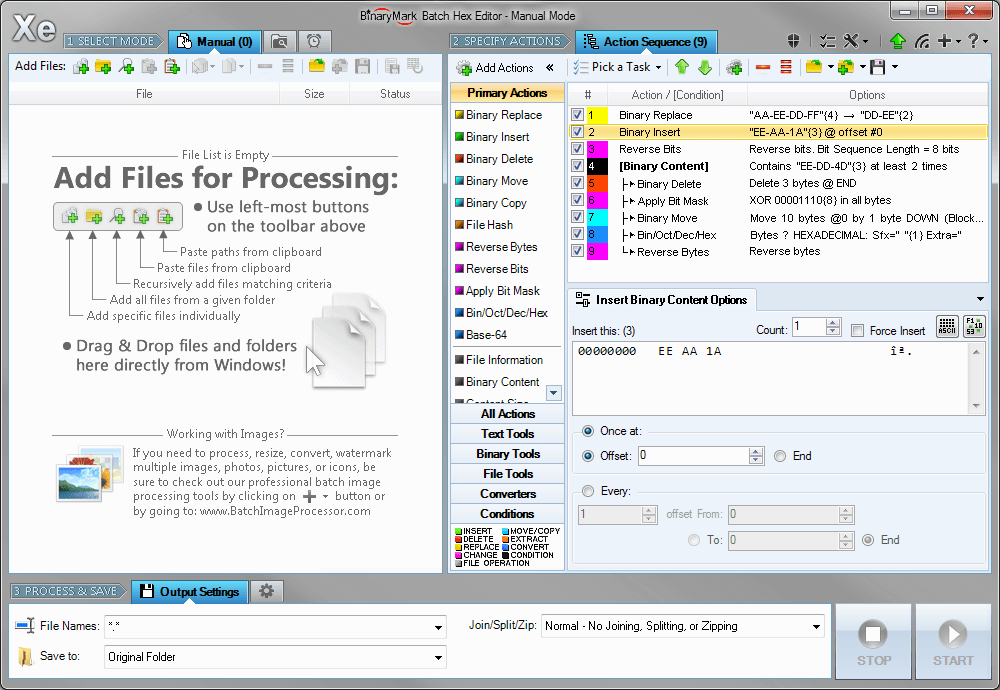
Replace, insert, delete, copy, and otherwise modify bytes and bits in multiple files. Perform bitwise operations on specified bytes with bitmasks and operators like NOT, AND, OR, XOR. Reverse order of specified bytes and bits. Compute file hashes.
Batch Text File Editor
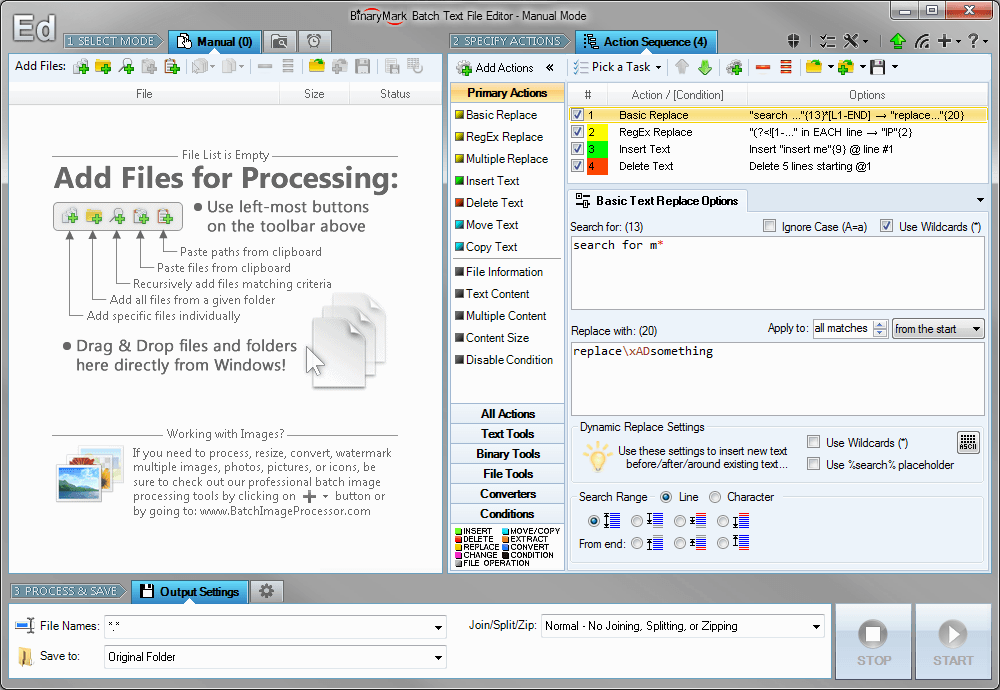
Batch-Notepad that can replace, insert, delete, copy, and move text in multiple files in bulk! Perform advanced search and replace operations using RegEx substitutions. Supports multi-line replace, wildcards, match selection, case matching, Unicode!
Batch File Rename
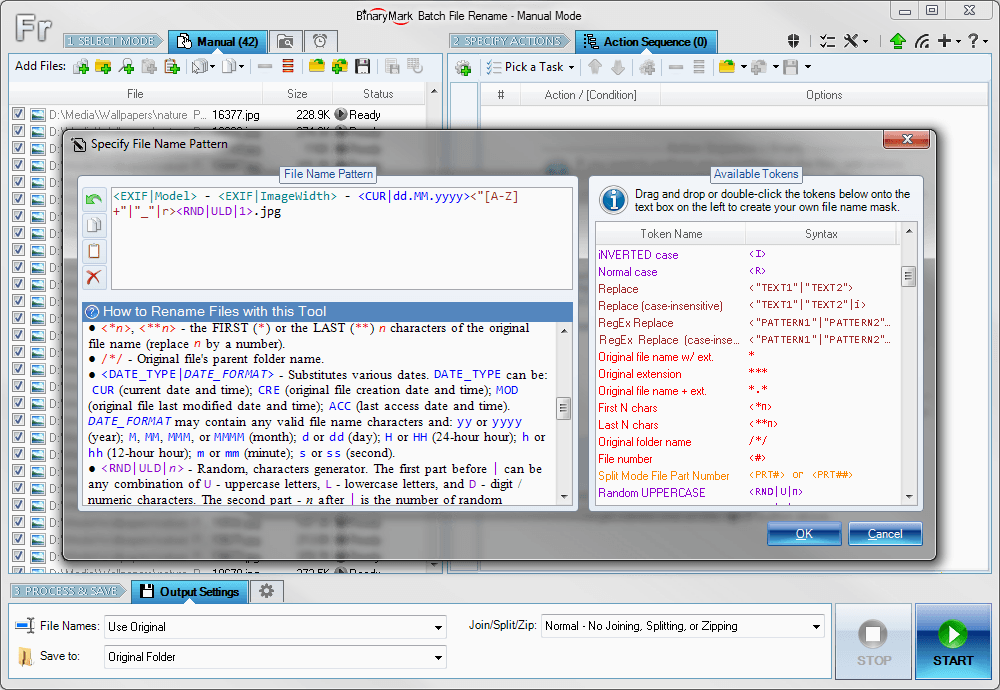
Rename multiple files according to a pattern you specify. Modify original file name by removing/copying its parts, replacing text, or changing letter case. Use dynamic elements like file properties, hashes, MP3 ID3 and EXIF tags, random characters.
Batch File Encrypt
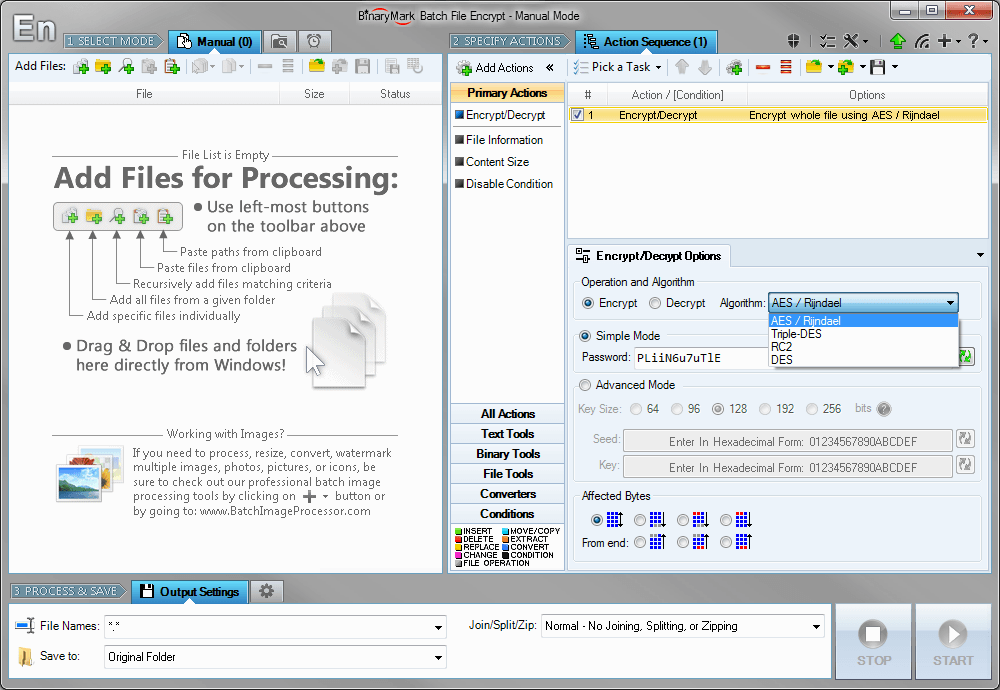
Encrypt and decrypt whole files or their parts using AES, 3-DES, RC2, and DES symmetric algorithms. You can encrypt files with a single password or specify cryptographic keys (vectors) instead. You can change key bit length for better protection.
Batch File Split & Join
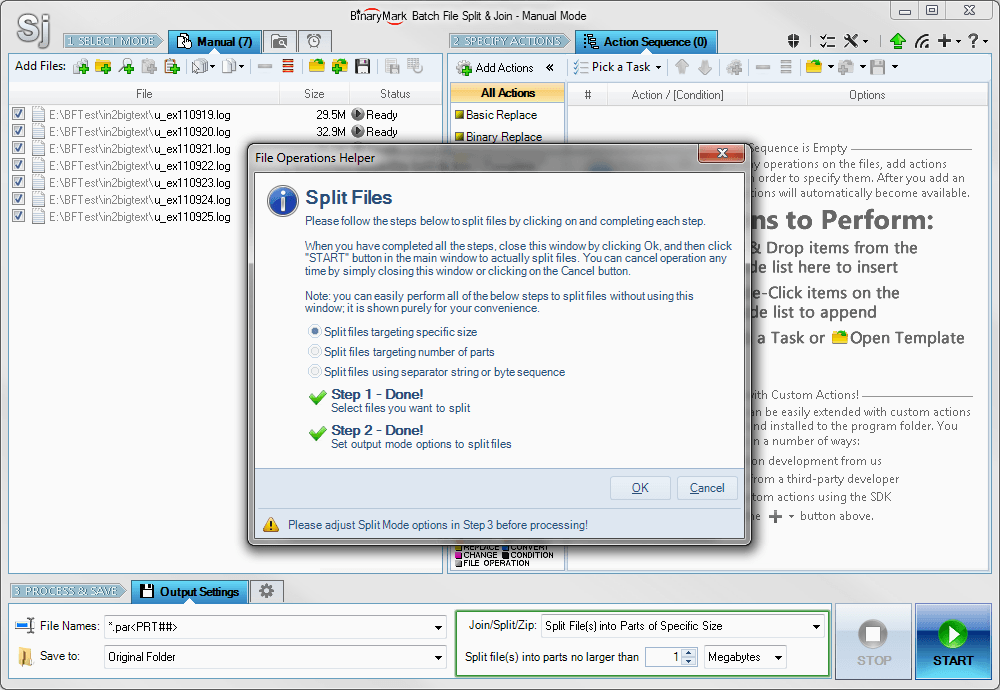
Split and merge multiple text or binary files in either character, line, or byte modes. When splitting files, you can split on certain text or binary separator; target given number of parts; or target specific part size. Join files on lines/bytes.
File Hash Generator
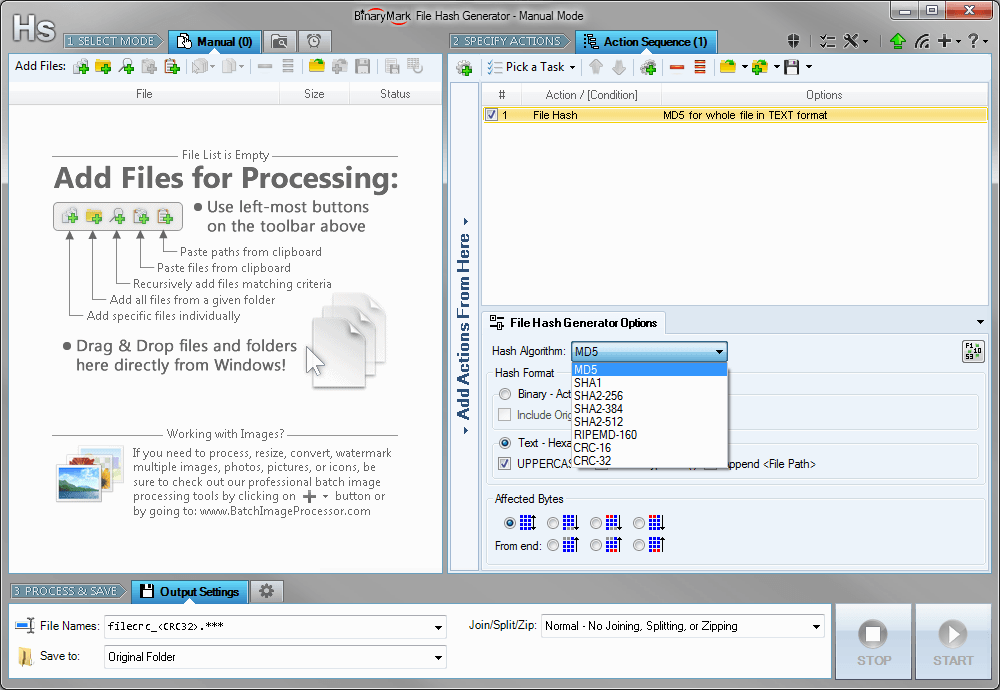
Compute and save MD5, SHA1, SHA2, RIPEMD hashes and CRC16/32 checksums for multiple files! Calculate hashes for whole file or just specified bytes. Insert hashes into files in text or binary form; save hashes to a separate file; add to file name.
Advanced File Finder
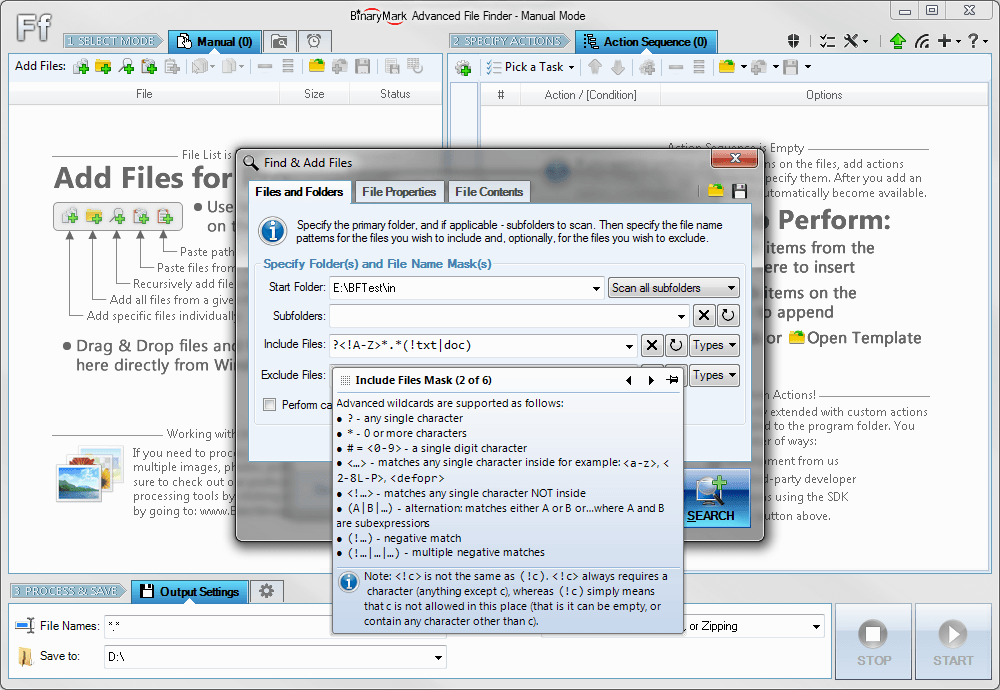
Generate file list of all files with specific name pattern, extension, properties and attributes, as well as text and binary content by recursively scanning specified directories and searching for matching files. Copy and rename found files.
Batch File Manager
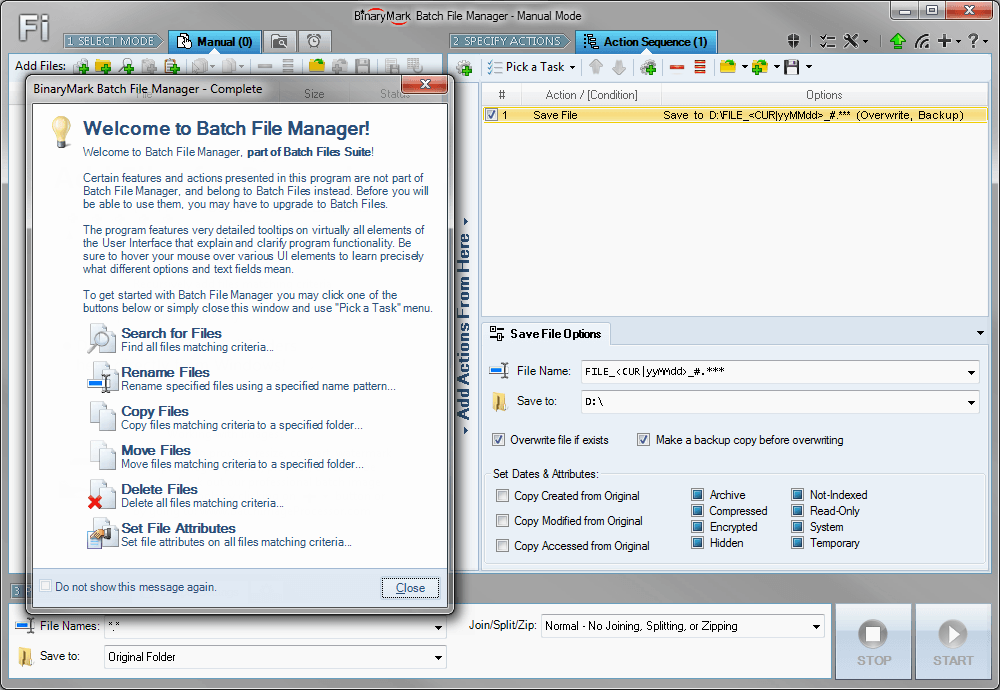
Rename, move, copy, delete, and otherwise manage multiple files. Rename multiple files according to the rules and pattern you specify using powerful editor with syntax highlighting. Copy, move files to folders specified using absolute/relative paths.
Random Suite
Password Generator
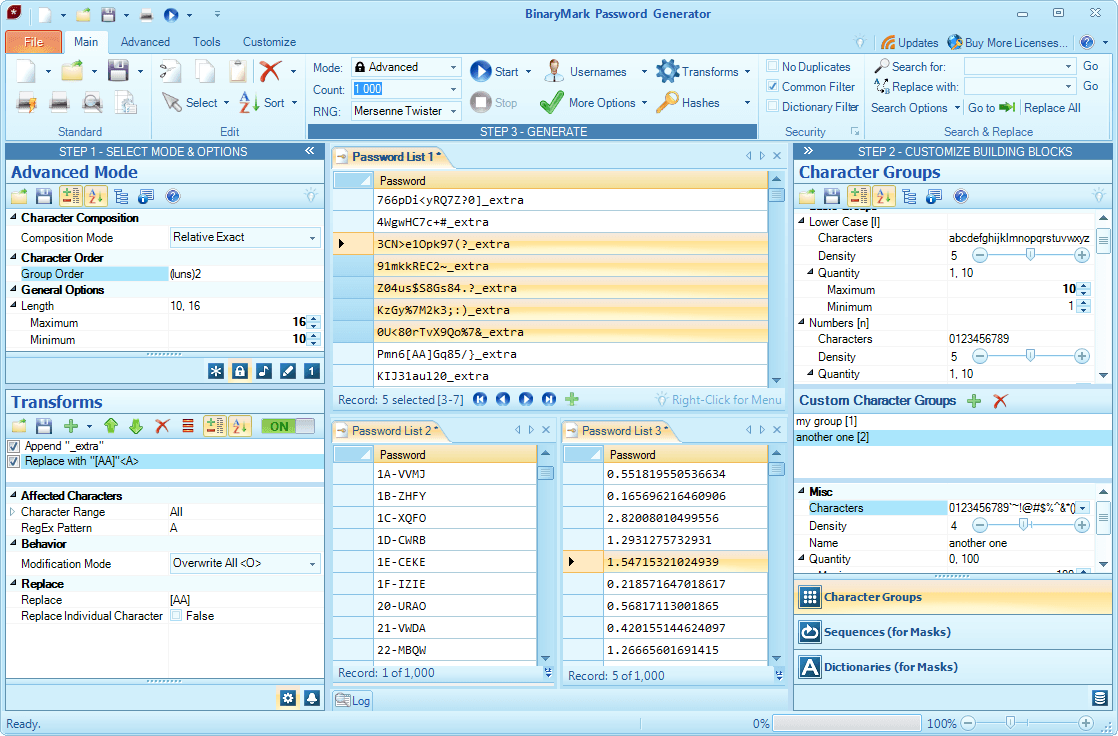
Generate millions of unique strong random passwords, numbers, masked codes, pronounceable passwords, usernames, and more. Control character placement, composition, frequency of occurrence. Eliminate duplicate, consecutive, repeating characters.
Random Number Generator
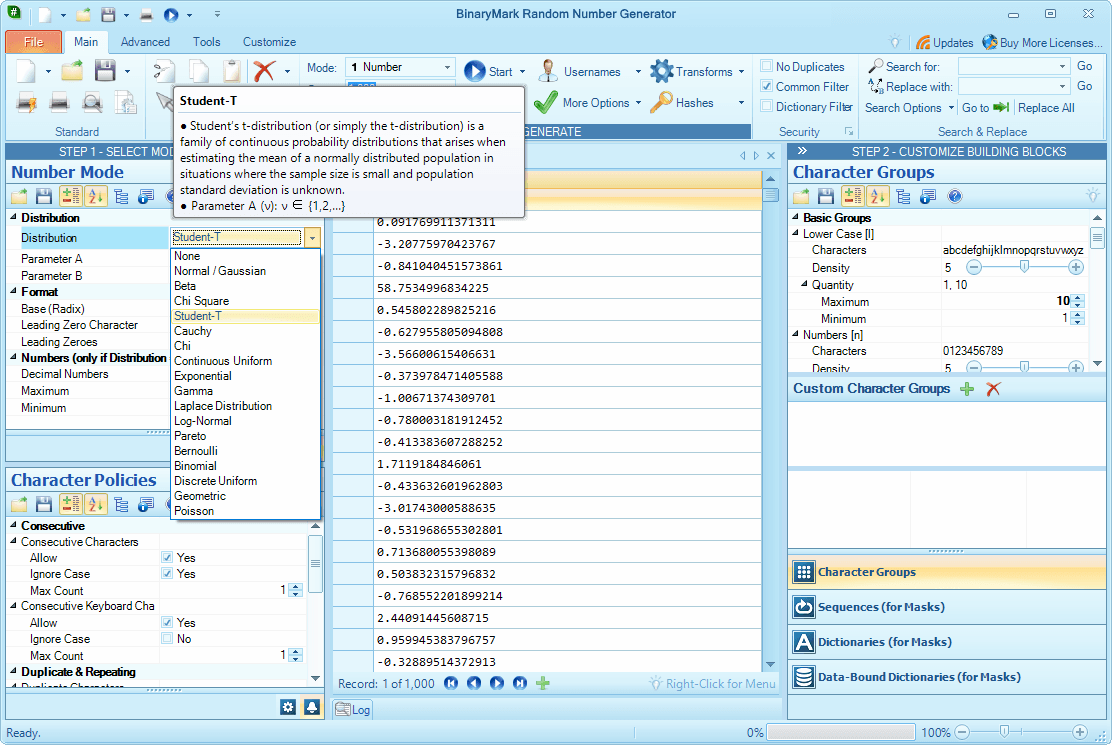
Randomly generate millions of integers or floating point numbers in the desired radix (base), format, and numeric range. Generated random numbers may match any one of the 17 built-in discrete or continuous statistical probability distributions.
Random Item Picker

Randomly pick items and remove duplicates from large lists. Different probabilities can be assigned to each item and items can be picked in groups or individually. There is ability to pick same items multiple times, sort and shuffle lists, and more!
Web Downloaders
Streaming Video Downloader
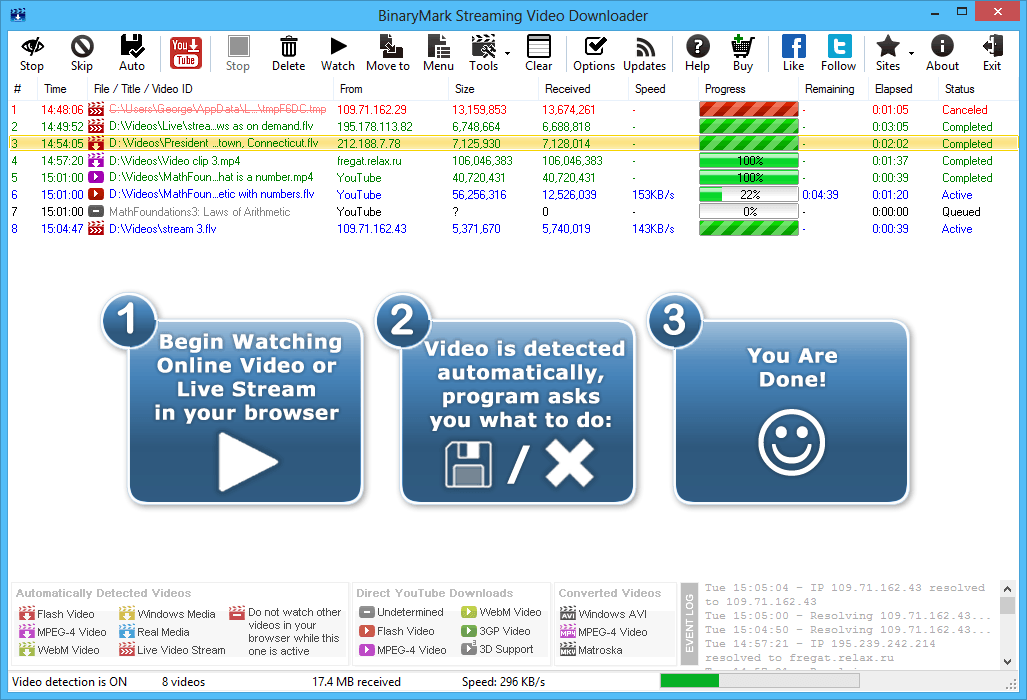
Save Flash FLV, F4F, RTMP, QuickTime, Silverlight, WebM, and Real videos from websites like FanCast, EarthCam, BBC iPlayer just by watching them in your browser. Record live streams in real time. Download YouTube videos and entire playlists.
All the Best YouTube Downloader
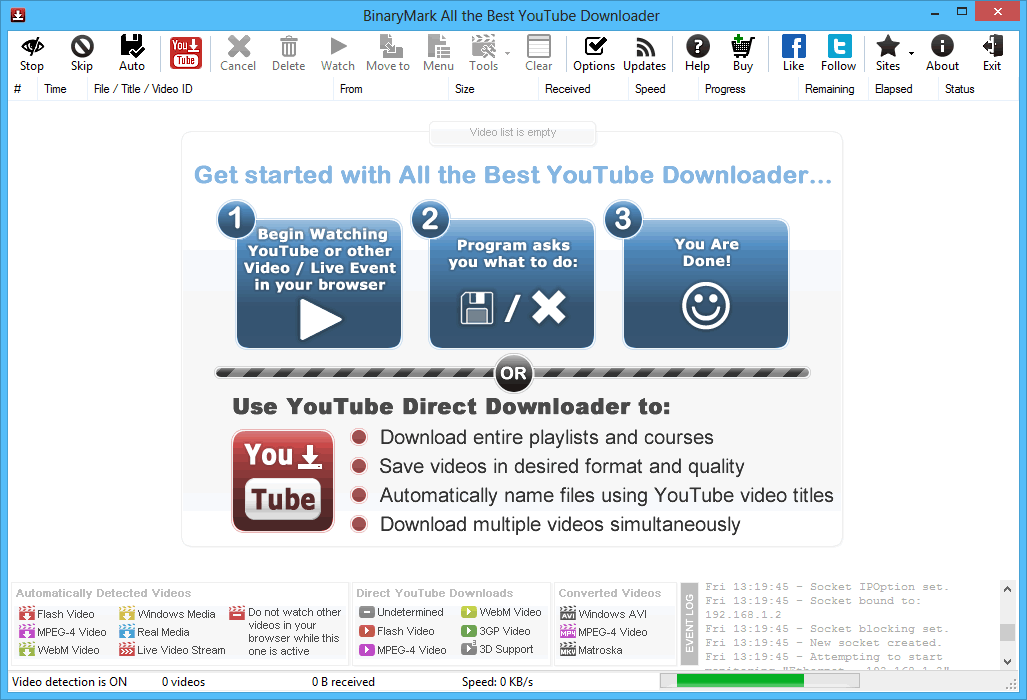
Simultaneously download multiple videos and entire playlists with friendly YouTube names in desired format and quality. Save videos, record webcams, and capture live video streams from hundreds of websites just by watching them in your browser!
Blogspot Image Downloader
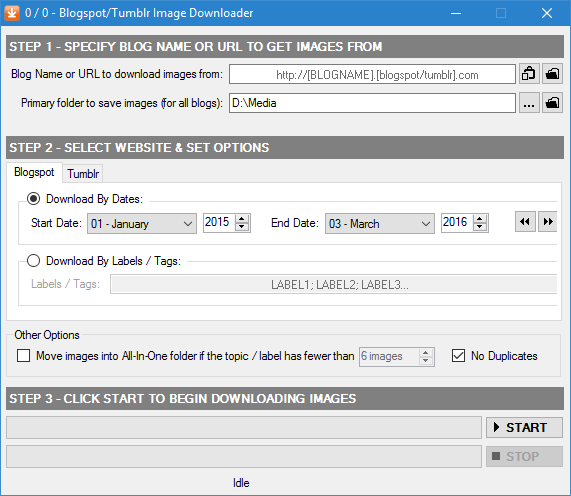
Automatically save images and photos from Blogspot / Tumblr blogs with friendly names derived from post titles. Download only images within specific date range or with specific labels. Easy to use: enter blog URL, set options, and start downloading.
Home & Personal
Biorhythms Calculator
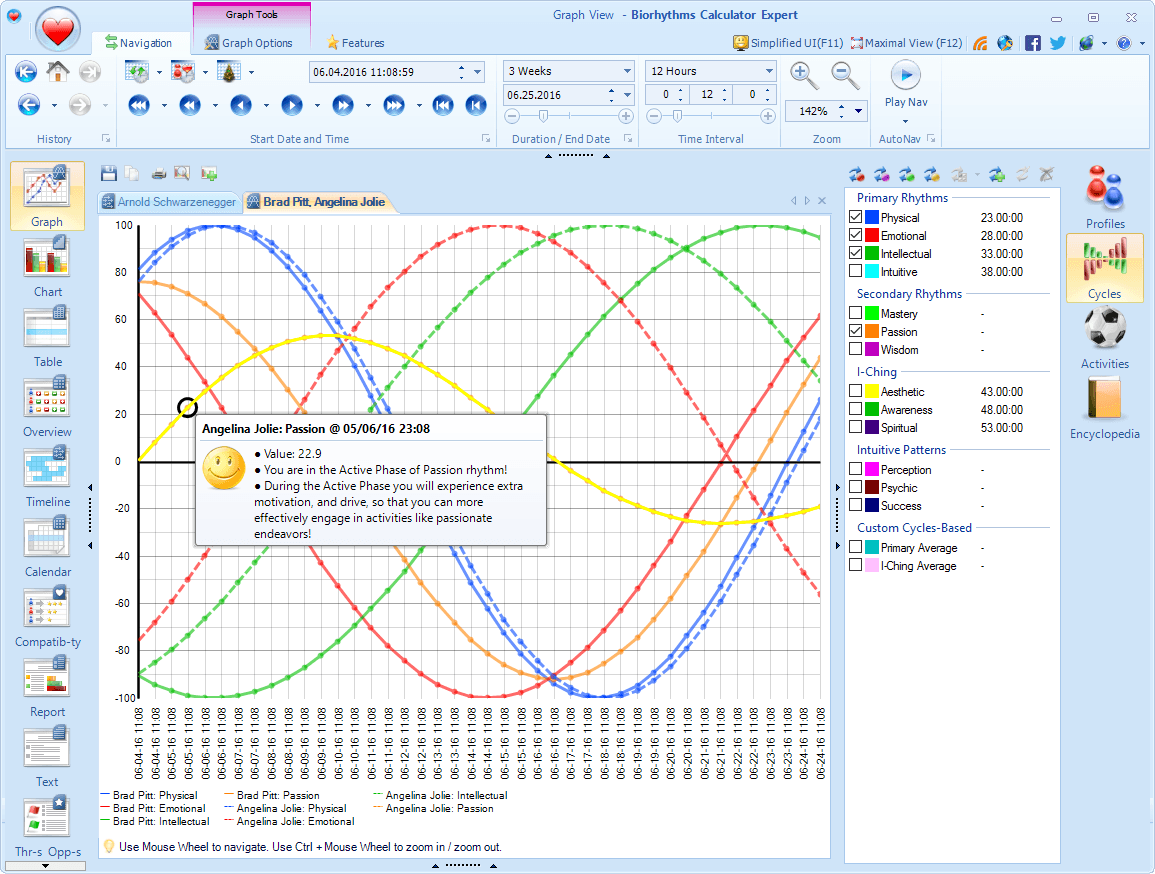
Discover your good and bad days by charting, comparing, and analyzing your biorhythms (Physical, Emotional, Intellectual, Intuitive, Mastery, Passion, Wisdom, and others) in a professional new software in Graph, Table, Report, and 6 other views
Text to MP3 Converter
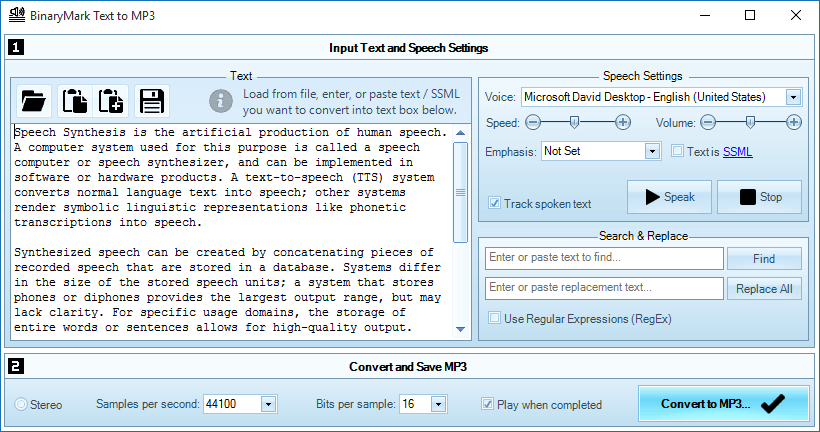
Quickly convert text, word, pdf, or other documents in most languages to speech and save results to MP3 files using OS Text-to-Speech voice synthesizer. Control speaker's voice, gender, speed, emphasis. Adjust sound quality, bit rate, other options.
Miscellaneous
Database E-Mailer

Dynamically generate and send personalized e-mails to customers using data from any common data source like Access or SQL Server. Use HTML and attachments in your emails; use CC, BCC, Importance, and other fields; plus many other e-mail options.
Color Picker Pro
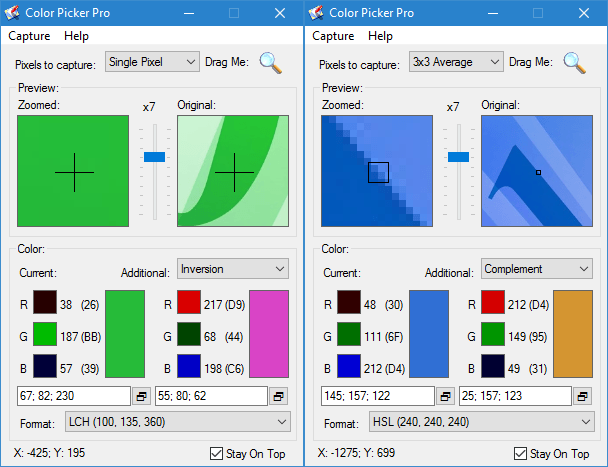
Pick single or multiple pixel colors anywhere on your screen in more than 25 formats! Convert colors from one color space to another. Automatically generate color variations for the colors you pick. Built-in screen magnifier simplifies color picking.