

Biorhythm Profiles

What are Profiles?
Profiles represent the individuals for whom you can view biorhythms and other information.
A typical profile contains individual's name, birth date, gender, description, and photo.
What is Profile Selector?
Profile Selector is a centralized place where you can select, edit, create, and manage all available profiles. Unlike other selectors, profile selector has additional options: it allows you to search for profiles using a small drop-down box. You can also group profiles by folder, gender, or zodiac sign. You can sort profiles by either name or age.
Use Profile Selector To:
- Select the profiles you want to appear in various views. Please note that while most views allow you to view multiple profiles at a time, Text and Report view do not have this functionality, as they are single-profile views.
- Edit existing profiles
- Create new profiles using either New Profile Dialog or New Profile Wizard that allows you to add several profiles at a time
- Move profiles between folder
- Assign and change profile pictures
- Delete existing profiles
Profile Selector Tips
These tips will help you use profile selector more efficiently:
- Use F2 as a shortcut to quickly access Profile Selector
- Left-Click an item to select a profile
- Ctrl-Left-Click an item to select additional profile (to compare different profiles to each other and see their compatibility)
- Right-Click an item to bring context menu
- Double-Click an item to edit profile
Biorhythm Cycles (Rhythms)

What are Cycles?
Cycles are essentially biorhythms. Inside Biorhythms Calculator we refer to all biorhythms as cycles. There are four built-in cycle groups: Primary, Secondary, I-Ching, and Intuitive Patterns. User-defined cycles will appear in the custom cycle group.
What is Cycle Selector?
Cycle Selector is a centralized place where you can select, edit, create, and manage all available cycles.
Use Cycle Selector To:
- Select the cycles you want to appear in various views by putting a checkmark next to desired cycle
- Edit existing cycles (except for built-in ones)
- Create new cycles
- Delete existing cycles (except for built-in ones)
Cycle Selector Tips
These tips will help you use cycle selector more efficiently:
- Use F3 as a shortcut to quickly access Cycle Selector
- See how various built-in cycles interact by creating custom cycles that depend on them
Biorhythm Activities

What are Activities?
Activities are unique feature introduced in Biorhythms Calculator for the first time in any biorhythms application! While in many cases, it may be sufficient to know when one cycle has a particular value or values, we thought that frequently it may be much better to know when several cycles would have certain values, because often you cannot rely just on one cycle to decide the best time to do something - you need to take other cycles into account.
Here is the practical illustration of this concept: suppose you have determined for yourself that the best time to play poker is when your Intuitive cycle is above +25% and when your Intellectual cycle is above +50%. It would be tedious and not very convenient to examine biorhythms graphs to find when this condition is met, if there was no concept of activities implemented! To find out when the above condition exists you simply have to define this activity (playing poker), by setting the values or value ranges of appropriate cycles, and then just use any of the views that support activities: Text, Report, Timeline, Calendar, or Threats and Opportunities, to find out when this activity will occur! It could not be simpler!
Activities not only save you a lot of time, but they also enable you to take a bigger advantage of using biorhythms in your daily life by making it more practical to use them.
What is Activities Selector?
Activities Selector is a centralized place where you can select, edit, create, and manage all available activities.
Use Activities Selector To:
- Select the activities you want to appear in various views by putting a checkmark next to a desired activity. The following views support activities: Text, Report, Timeline, Calendar, and Threats and Opportunities.
- Edit existing activities
- Create new activities
- Move activities between folders
- Delete existing activities
Activities Selector Tips
These tips will help you use cycle selector more efficiently:
- Use F4 as a shortcut to quickly access Activities Selector
User Interface Elements

Welcome Window
Welcome Window is a fast and easy way to get started with Biorhythms Calculator It provides links to common and frequently accessed commands, displays tips of the day, and most importantly provides a brief overview of your current biorhythm status, and today's date.

Information Pane
Information Pane displays detailed information about the state of the selected Profile at a particular time. It displays person's name, zodiac sign, how much the person has lived, his numerology information, information about the date, such as moon phase, and of course it displays detailed biorhythms report.
The information in the Information Pane is updated when one of the following occurs:
- If the current view supports interactivity, when currently selected item in the view changes
- Start date changes
- Selected profile(s) change
- Selected cycle(s) (rhythms) change
Various Biorhythm Views
Biorhythms Calculator features more built-in views of biorhythms than any other biorhythm program! All views can be printed, and most views can be saved in appropriate file formats, so you can work with data they generate in other programs too!
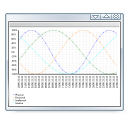
Graph View
Graph view is the default view in Biorhythms Calculator It clearly displays biorhythms curves. To get detailed information about the value of a particular cycle at a particular time, hover your mouse over the desired point.
- Supports multiple profiles (to compare different individuals side by side)
- Supports image sets (smiley faces, flags, stars, and any other visualizations that help you see biorhythm status at a glance)
- Supports right-click context menu
- Interactive (updates information pane at the bottom of the window as you select different items)
- Can save view as image file (so you can e-mail it to your friends, or otherwise work with it)
- Supports Time Interval changes and Zoom navigation features
- Supports Automatic Navigation
Here are some tips for using Graph View:
- Use Mouse Side Buttons (if it has them) to navigate backwards and forwards in navigation history
- Use Mouse Wheel to change the start date
- Use Ctrl + Mouse Wheel to zoom in or zoom out
- Ensure the view is active by clicking on it before using the above commands.
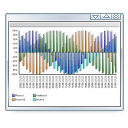
Chart View
Chart view displays biorhythms data in the form of a column chart. To get detailed information about the value of a particular cycle at a particular time, hover your mouse over the desired column.
- Supports multiple profiles (to compare different individuals side by side)
- Supports image sets (smiley faces, flags, stars, and any other visualizations that help you see biorhythm status at a glance)
- Supports right-click context menu
- Interactive (updates information pane at the bottom of the window as you select different items)
- Can save view as image file (so you can e-mail it to your friends, or otherwise work with it)
- Supports Time Interval changes and Zoom navigation features
- Supports Automatic Navigation
Here are some tips for using Chart View:
- Use Mouse Side Buttons (if it has them) to navigate backwards and forwards in navigation history
- Use Mouse Wheel to change the start date
- Use Ctrl + Mouse Wheel to zoom in or zoom out
- Ensure the view is active by clicking on it before using the above commands.
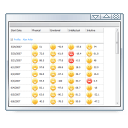
Table View
Table view is ideal for comparing values of various cycles side by side as it displays biorhythms data in a tabular form.
- Supports multiple profiles (to compare different individuals side by side)
- Supports image sets (smiley faces, flags, stars, and any other visualizations that help you see biorhythm status at a glance)
- Supports right-click context menu
- Interactive (updates information pane at the bottom of the window as you select different items)
- Can save view as xml file in tabular form (for export to Word, analysis in Excel, or use in other programs)
- Supports Time Interval changes and Zoom navigation features
- Supports Automatic Navigation
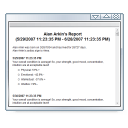
Text View
Text view displays biorhythms data and activities information in a simple text form. It has no configurable options.
Text view is simple but informative and without clutter.
- Supports activities
- Supports Time Interval changes and Zoom
- Can be saved as a web page
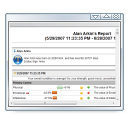
Report View
Report view displays biorhythms data and activities information in a structured, graphical form, similar to a web page. It contains a lot of information and details, and is ideal for comprehensive overview of one's biorhythm status.
- Supports activities
- Supports Time Interval changes and Zoom
- Displays information about moon phases
- Supports image sets
- Can be saved as a web page
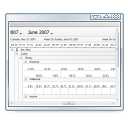
Timeline View
Timeline view displays biorhythms data and activities in a view similar to that of Outlook's timeline. It is ideal for comparing when different activities will occur.
- Supports multiple profiles
- Supports activities
- Supports image sets
- Supports right-click context menu
- Interactive (updates information pane at the bottom of the window as you select different items)
- Supports Time Interval changes and Zoom
- Supports Automatic Navigation
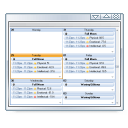
Calendar View
Calendar view can display biorhythms data in either day, week, or month calendar views, similar to how Outlook displays calendars.
- Supports multiple profiles
- Supports activities
- Can display information about moon phases
- Supports image sets
- Supports right-click context menu
- Interactive (updates information pane at the bottom of the window as you select different items)
- Supports Time Interval changes and Zoom
- Supports Automatic Navigation
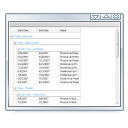
Threats and Opportunities View
Threats and Opportunities view displays crucial biorhythms, activities, and moon information in tabular form, so you can get a quick overview of the most important events.
- Supports multiple profiles
- Supports activities
- Can display information about moon phases
- Supports image sets
- Supports right-click context menu
- Interactive (updates information pane at the bottom of the window as you select different items)
Multiple Views
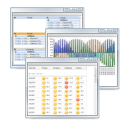
Biorhythms Calculator allows you to work with several views simultaneously. Each view is completely independent of others, and can have its own set of profiles, cycles, and activities, as well as formatting applied.
To create a new view, simply click the Create New View button located at the top. The default behavior when creating a new view by clicking on the New View button is that the current view is cloned. You can then change the newly created view as you see fit.
Biorhythms Calculator not only supports tabbed Multiple Document Interface (MDI), similar to the one you would find in products such as Firefox browser, or the latest version of Internet Explorer; but it also allows you to view several views side by side. All you have to do to accomplish this task is click the view's title and drag it to a place where you want it to appear. Semi-transparent guidelines and docking sites will appear to aid you in this operation. This greatly increases your productivity, as it allows you to get an overview of need information more quickly, as well as compare views side by side.
Navigation
In Biorhythms Calculator, you can view biorhythm charts and reports for different combinations of individuals and cycles for different dates. You can easily navigate time-wise in the program using several tools explained below.
Start Date
Start date is one of the most basic elements of navigation. It determines the starting date of biorhythm report. Starting from this date, the program will obtain biorhythm and other information. The end date of the report, in turn, is determined by the duration property.
There are many ways in which you can set starting date: using the birthday of the currently selected profile, using holidays, using custom date, etc. You can even specify the precise time as well.
Duration
Duration is another basic element of navigation in Biorhythms Calculator! It determines how lengthy the biorhythm report will be - how much readings a particular view will contain. Most biorhythm programs do not allow you to select duration, and typically restrict its value to one month; some others give you a limited choice of several predefined settings, such as one week, one month, and several months.
We give you complete flexibility. You can set duration to be whatever you want - from a couple of hours to a couple of years! In addition, we give you two ways, in which duration can be set: either by specifying the duration - period of time that is, or simply by specifying the ending date. Choose whichever is more convenient for you!
Important! Setting this value too large, compared to the time interval property (for example 3 days vs. 1 minute) can have adverse effects on performance, readability, and stability, as the program would have to compute and render more biorhythm data items. In this case it would be 3 * 24 * 60 = 4 320 items! Compare this to standard - 1 Month view with Daily time intervals, which contains only 30 items! Therefore it is recommended to keep time interval and duration values so that the total number of items (readings) generated will not exceed a couple of hundred at the most! While the program can render more values than that, the stability is not guaranteed!

Time Interval
Time Interval is another basic element of navigation in Biorhythms Calculator! It determines how often the program will take biorhythms measurements. Most biorhythm programs do not allow you to change this property, and typically have this set to either one day, or 12 hours. Here, we give you complete flexibility. You can set time interval to whatever value you desire - from several seconds to several months!
Important! Setting this value too small, compared to the duration property (for example 1 minute vs. 3 days) can have adverse effects on performance, readability, and stability, as the program would have to compute and render more biorhythm data items. In this case it would be 3 * 24 * 60 = 4 320 items! Compare this to standard - 1 Month view with Daily time intervals, which contains only 30 items! Therefore it is recommended to keep time interval and duration values so that the total number of items (readings) generated will not exceed a couple of hundred at the most! While the program can render more values than that, the stability is not guaranteed!

Zoom
Zoom is a convenient feature that combines the power of setting the duration and time interval together. Please do not confuse it with graphical zoom, whereby you would make elements look larger. The zoom we are talking about here - is different. In essence, it simply increases the precision, or the resolution of biorhythms information. For instance, if we take the default view of 1 Month in duration, and time intervals equal to 1 Day, and then apply zoom to it, we would see that the duration would decrease, as well as the time interval, and we would see more biorhythms readings per day. Just as you can "zoom in", you can also "zoom out".
Navigation History
Navigation history is a convenient way to navigate between different views. It tracks various navigation changes you apply to a view, such as start date change, duration change, time interval change, view change, etc., and saves this information. You can then simply use back and forward mouse button buttons, or buttons on the History pane to navigate back and forth between saved views.

Automatic Navigation
Automatic Navigation is one of many unique features in Biorhythms Calculator! Basically it allows you to set the program to automatically advance the start date by a given amount and update the view accordingly.
There are several ways in which you can set this amount: by specifying how much faster than real-time the view will be updated, by specifying the percentage of the current view's duration or by specifying the precise time interval by which to advance the starting date.
You can either set the starting date to move forwards, or backwards. Additionally, you can configure how often the view will be updated. The default value is every second, but you can change it in program options.
Not all views support this feature, but the following do support it: Graph, Chart, Table, Timeline, and Calendar.
Other Features

Visualizations (Image Sets)
Image Sets are yet another unique feature of Biorhythms Calculator They can better visualize crucial biorhythms information by displaying, for example, a smiley face, when you are on a good day for a particular cycle, or a sad face when you are on a bad day for a particular cycle. This greatly complements and enhances biorhythms data, enabling you to just throw a quick glimpse on it to get the most important details.
There are many built-in image sets, however if you find there are not enough to choose from, you can even create your own image sets.
Biorhythms Journal
Journal is a special view that lets you create a journal where you would track how you actually felt on particular days. For example even though biorhythms predicted -55% for the value of Physical cycle, you might have actually felt much better that day. Journal is the place to record it for future references. You can also leave comments for every journal entry.

Outlook & iCal Support
Among the many innovations in Biorhythms Calculator, Microsoft Outlook and iCalendar support are one of the more practical ones. You can easily export the desired biorhythms, activities, and moon information to either Outlook or, beginning with version 2026 - iCalendar *.ics file. There are several ways in which this can be done.
First, you can click the Export to Outlook button located on the Home tab, like you just did. Then use the window to specifically select the items you want to be exported. You can also configure additional options, such as reminder.
There is also a dedicated button above the main view that lets you to export directly to *.ics iCalendar file, so you can use it in other personal time management programs in case you are not using Outlook for this.
Finally, if the view, in which you are viewing the biorhythms information, supports context menu, you can select Export to Outlook command to export the selected item to Outlook in just one click.
What is Biorhythms Calculator 2026?
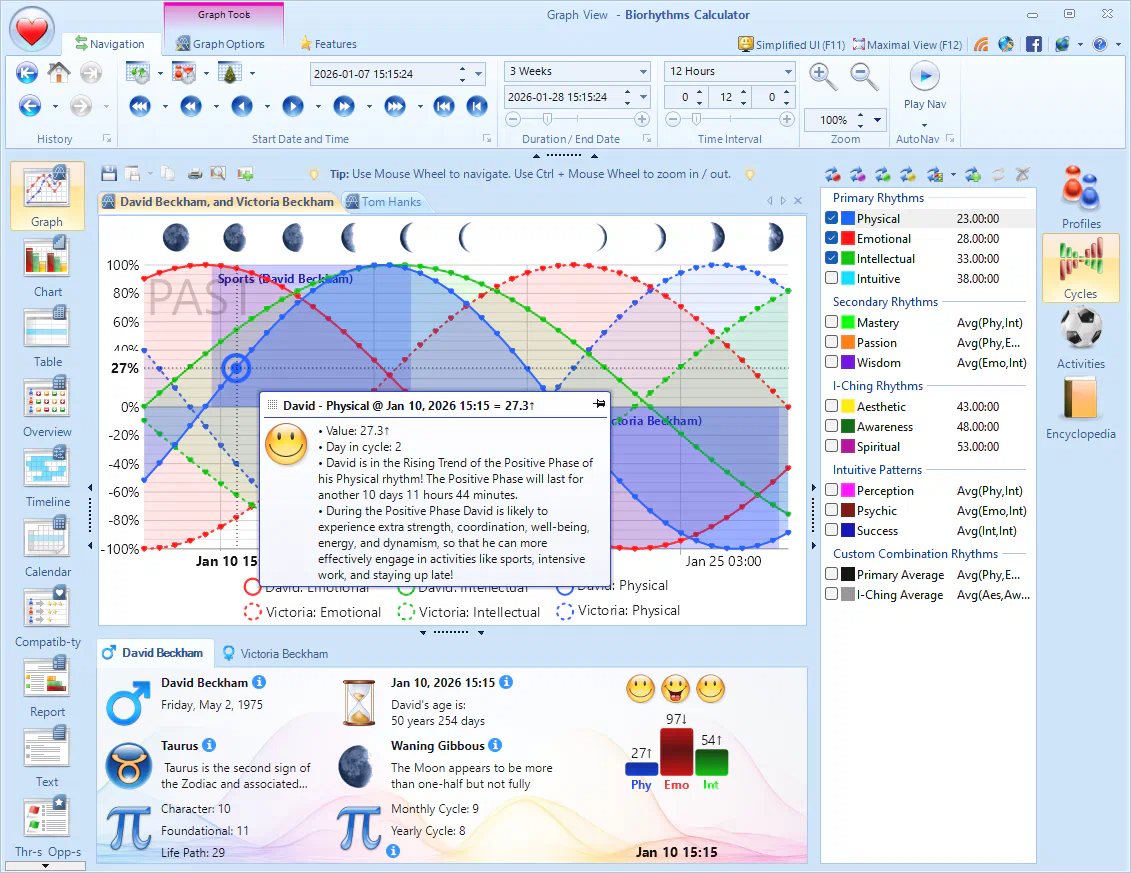
Biorhythms Calculator 2026 is revolutionary new biorhythms software with many unique features you will not find in any other product – all beautifully packaged in a modern and stylish User Interface with Ribbon and Tabs.
Whether you are looking for software to occasionally view, share, or print personalized biorhythm charts, or a tool designed for true biorhythm professionals with large database of profiles and multiple ways to visualize biorhythms, Biorhythms Calculator has everything you need! But don't just take our word for it – read numerous Biorhythms Calculator reviews below!
- 10 different views
- 15 built-in rhythms
- User-defined cycles
- Report generator
- Compatibility views
- Side-by-Side comparisons
- Timeline & Calendar views
- Printing support
- Export to jpg, pdf, csv, and other formats
- Optional Astrology & Numerology
- Calendaring support - MS Outlook, iCalendar
- Built-in Journal
- Threats & Opportunities View
- Overview and Summary views
- Biorhythms Encyclopedia
- Biorhythm Awareness E-Book
- Celebrities Database
- Much more…
